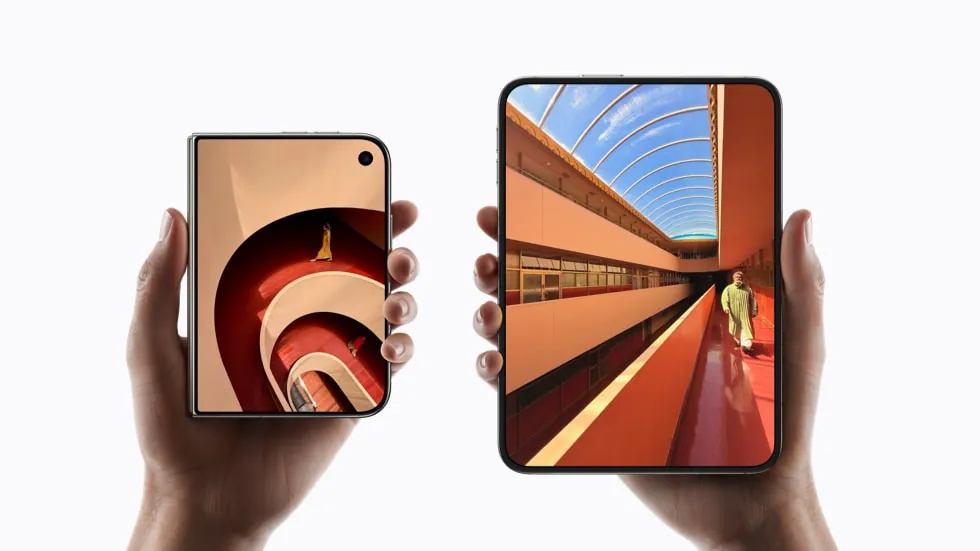
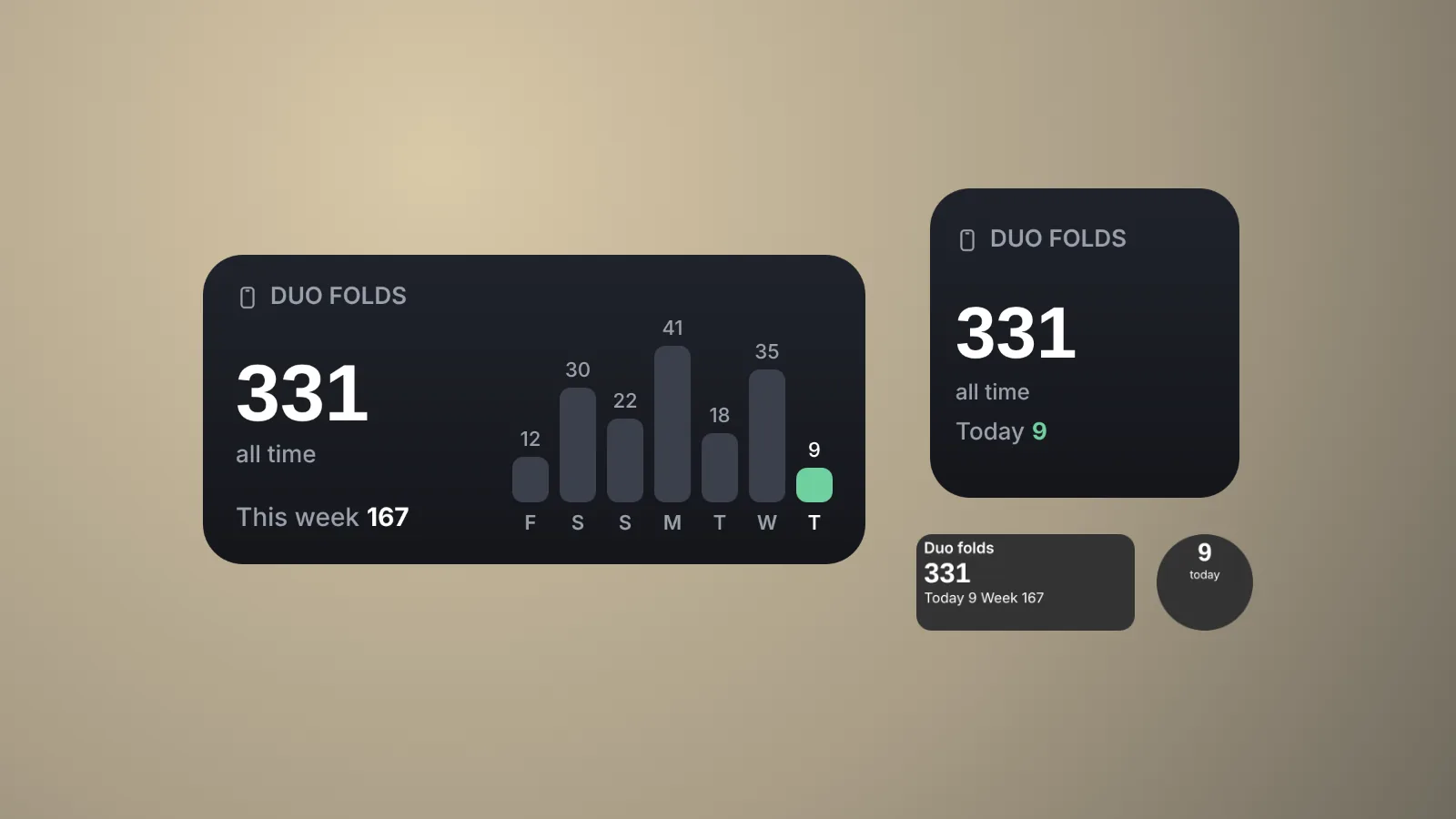
You have seen the widget on Facebook and Instagram this week: a dark card on someone's iPhone Duo that says how many times they have opened the phone, with a bar for each day. People keep asking in the comments which app it is. There is no app. It is a short script in Scriptable, a free scripting app, fired by a new Shortcuts trigger that only the iPhone Duo has.
The short answer: you need three free pieces. Scriptable draws the widget and saves the count. A Shortcuts automation on the iPhone Duo's new "Opened or Closed" trigger runs the script each time you open the phone. The script below ties them together. Setup takes about ten minutes, costs nothing, and the count never leaves your phone. We wrote our own version from scratch, and you can copy it in one tap.
Key takeaways
- The iPhone Duo ships with iOS 27.1, which adds a Shortcuts automation that runs when the phone is opened or closed. That trigger is what makes an automatic fold counter possible.
- Scriptable is free on the App Store. Shortcuts cannot draw a custom widget on its own, so Scriptable does the drawing.
- The widget updates on iOS's schedule, not instantly. The count is saved the moment you open the phone, but the number on screen can lag by a few minutes.
At a glance
| Item | Details |
|---|---|
| Phone | iPhone Duo. The open and close trigger exists only on the Duo, which ships with iOS 27.1 |
| Scriptable | Free on the App Store, with optional tips. The listing says it collects no data |
| Shortcuts | Built into iOS. No download |
| The script | Below on this page, about 250 lines of JavaScript. No internet access, no account |
| Widget sizes | Small and medium on the Home Screen; circular, rectangular and inline on the Lock Screen |
| Cost | $0 |
| Time | About 10 minutes |
How the fold counter works
Three parts pass the count along. Shortcuts notices that you opened the phone and runs the script with one word, fold. The script adds one to today's total and saves a small file inside Scriptable's own folder. When iOS next refreshes the widget, the same script reads that file and draws the numbers and the last seven days as bars.
Step 1: add the script to Scriptable
- Install Scriptable by Simon B. Støvring from the App Store.
- Open it, tap + to start a new script, and paste in everything from the box below. On this page, the Copy button copies the whole script.
- Tap the title at the top and rename the script Duo Folds. The Shortcut in step 2 looks for this exact name.
- Tap the play button once. A menu opens with Preview widget, Add one fold, Undo last fold and Reset to zero. Pick Preview widget to see the empty widget.
// Duo Folds: a fold counter widget for iPhone Duo, made with Scriptable.
// Written for vaelolab.com. Free to copy, change and share.
//
// How it works
// 1. A Shortcuts automation ("Opened or Closed", set to Opened) runs this
//    script with the text "fold" every time you open the phone.
// 2. The script adds one to today's count and saves it on your phone.
// 3. The Home Screen widget reads the saved counts and draws the chart.
//
// Commands you can send from Shortcuts (Run Script, Parameter):
//   fold   add one fold (use this in the automation)
//   undo   remove the last fold
//   reset  clear every count
// Tap the play button in Scriptable to preview the widget or fix the count.
//
// Nothing leaves your phone. The script never uses the internet.

// ---------- settings you can change ----------
const TITLE = "DUO FOLDS"
const ACCENT = new Color("#6fcf9f")      // today's bar
const BAR = new Color("#3b404c")         // other days
const BG_TOP = new Color("#20232b")
const BG_BOTTOM = new Color("#14161b")
const TEXT = Color.white()
const MUTED = new Color("#9aa0ab")
const MIN_GAP_SECONDS = 3                // ignore a second trigger within 3 seconds
const KEEP_DAYS = 120                    // how many days of history to keep
const FILE_NAME = "duo-folds.json"

// ---------- storage ----------
const fm = FileManager.local()
const path = fm.joinPath(fm.documentsDirectory(), FILE_NAME)

function load() {
  if (!fm.fileExists(path)) return { total: 0, days: {}, last: 0 }
  try {
    const d = JSON.parse(fm.readString(path))
    return { total: d.total || 0, days: d.days || {}, last: d.last || 0 }
  } catch (e) {
    return { total: 0, days: {}, last: 0 }
  }
}

function save(d) {
  fm.writeString(path, JSON.stringify(d))
}

function dayKey(date) {
  const y = date.getFullYear()
  const m = String(date.getMonth() + 1).padStart(2, "0")
  const day = String(date.getDate()).padStart(2, "0")
  return y + "_" + m + "_" + day
}

function prune(d) {
  const cutoff = new Date()
  cutoff.setDate(cutoff.getDate() - KEEP_DAYS)
  const oldest = dayKey(cutoff)
  for (const k of Object.keys(d.days)) {
    if (k < oldest) delete d.days[k]
  }
}

function addFold(d) {
  const now = Date.now()
  if (now - d.last < MIN_GAP_SECONDS * 1000) return false
  const k = dayKey(new Date())
  d.days[k] = (d.days[k] || 0) + 1
  d.total += 1
  d.last = now
  prune(d)
  save(d)
  return true
}

function undoFold(d) {
  const k = dayKey(new Date())
  if (!d.days[k] || d.total === 0) return
  d.days[k] -= 1
  d.total -= 1
  save(d)
}

function lastSevenDays(d) {
  const out = []
  for (let i = 6; i >= 0; i--) {
    const date = new Date()
    date.setDate(date.getDate() - i)
    out.push({
      letter: "SMTWTFS"[date.getDay()],
      count: d.days[dayKey(date)] || 0,
      today: i === 0
    })
  }
  return out
}

// ---------- drawing ----------
function addLabel(stack, text, font, color) {
  const t = stack.addText(text)
  t.font = font
  t.textColor = color
  t.lineLimit = 1
  t.minimumScaleFactor = 0.6
  return t
}

function header(stack) {
  const row = stack.addStack()
  row.layoutHorizontally()
  row.centerAlignContent()
  const icon = row.addImage(SFSymbol.named("iphone").image)
  icon.imageSize = new Size(13, 13)
  icon.tintColor = MUTED
  row.addSpacer(6)
  addLabel(row, TITLE, Font.semiboldSystemFont(13), MUTED)
}

function chart(stack, days, height) {
  const max = Math.max(1, ...days.map(x => x.count))
  const barMax = height - 34
  const row = stack.addStack()
  row.layoutHorizontally()
  row.bottomAlignContent()
  row.spacing = 6
  for (const day of days) {
    const col = row.addStack()
    col.layoutVertically()
    col.size = new Size(20, height)
    col.addSpacer()
    const num = col.addStack()
    num.addSpacer()
    addLabel(num, String(day.count), Font.mediumSystemFont(11), day.today ? TEXT : MUTED)
    num.addSpacer()
    col.addSpacer(3)
    const bar = col.addStack()
    bar.size = new Size(20, Math.max(5, Math.round(barMax * day.count / max)))
    bar.cornerRadius = day.count === 0 ? 2.5 : 6
    bar.backgroundColor = day.today ? ACCENT : BAR
    col.addSpacer(5)
    const letter = col.addStack()
    letter.addSpacer()
    addLabel(letter, day.letter, Font.semiboldSystemFont(11), day.today ? TEXT : MUTED)
    letter.addSpacer()
  }
}

function buildWidget(d, family) {
  const days = lastSevenDays(d)
  const week = days.reduce((s, x) => s + x.count, 0)
  const today = days[6].count
  const w = new ListWidget()
  w.refreshAfterDate = new Date(Date.now() + 15 * 60 * 1000)

  // Lock Screen sizes
  if (family === "accessoryCircular") {
    w.addAccessoryWidgetBackground = true
    const t = addLabel(w, String(today), Font.boldRoundedSystemFont(20), TEXT)
    t.centerAlignText()
    const s = addLabel(w, "today", Font.systemFont(9), TEXT)
    s.centerAlignText()
    return w
  }
  if (family === "accessoryInline") {
    addLabel(w, "Folds today " + today + ", all time " + d.total, Font.systemFont(12), TEXT)
    return w
  }
  if (family === "accessoryRectangular") {
    addLabel(w, "Duo folds", Font.semiboldSystemFont(12), TEXT)
    addLabel(w, String(d.total), Font.boldRoundedSystemFont(22), TEXT)
    addLabel(w, "Today " + today + "  Week " + week, Font.systemFont(11), TEXT)
    return w
  }

  const g = new LinearGradient()
  g.colors = [BG_TOP, BG_BOTTOM]
  g.locations = [0, 1]
  w.backgroundGradient = g

  if (family === "small") {
    w.setPadding(14, 14, 14, 14)
    header(w)
    w.addSpacer()
    addLabel(w, String(d.total), Font.boldRoundedSystemFont(40), TEXT)
    addLabel(w, "all time", Font.mediumSystemFont(12), MUTED)
    w.addSpacer(8)
    const row = w.addStack()
    row.spacing = 4
    addLabel(row, "Today", Font.mediumSystemFont(13), MUTED)
    addLabel(row, String(today), Font.boldSystemFont(13), ACCENT)
    return w
  }

  // Medium (and large): numbers on the left, last 7 days on the right
  w.setPadding(16, 18, 16, 18)
  const body = w.addStack()
  body.layoutHorizontally()
  body.bottomAlignContent()
  const left = body.addStack()
  left.layoutVertically()
  header(left)
  left.addSpacer()
  addLabel(left, String(d.total), Font.boldRoundedSystemFont(44), TEXT)
  addLabel(left, "all time", Font.mediumSystemFont(13), MUTED)
  left.addSpacer()
  const wk = left.addStack()
  wk.spacing = 4
  addLabel(wk, "This week", Font.mediumSystemFont(14), MUTED)
  addLabel(wk, String(week), Font.boldSystemFont(14), TEXT)
  body.addSpacer()
  chart(body, days, 120)
  return w
}

// ---------- run ----------
const data = load()
const param = (args.shortcutParameter || (args.plainTexts && args.plainTexts[0]) || "")
  .toString().trim().toLowerCase()

if (param === "fold" || param === "open") {
  addFold(data)
  Script.setShortcutOutput(data.total)
} else if (param === "undo") {
  undoFold(data)
  Script.setShortcutOutput(data.total)
} else if (param === "reset") {
  save({ total: 0, days: {}, last: 0 })
  Script.setShortcutOutput(0)
} else if (config.runsInWidget) {
  Script.setWidget(buildWidget(data, config.widgetFamily))
} else if (config.runsInApp) {
  const a = new Alert()
  a.title = "Duo Folds"
  a.message = "All time: " + data.total + ". Today: " + (data.days[dayKey(new Date())] || 0) + "."
  a.addAction("Preview widget")
  a.addAction("Add one fold")
  a.addAction("Undo last fold")
  a.addDestructiveAction("Reset to zero")
  a.addCancelAction("Close")
  const choice = await a.presentAlert()
  if (choice === 1) addFold(data)
  if (choice === 2) undoFold(data)
  if (choice === 3) save({ total: 0, days: {}, last: 0 })
  if (choice >= 0 && choice <= 3) {
    await buildWidget(load(), "medium").presentMedium()
  }
} else {
  Script.setWidget(buildWidget(data, config.widgetFamily))
}
Script.complete()
Prefer another accent colour? Change ACCENT near the top. Want the title to say something else, such as your shop name? Change TITLE. Everything else can stay as it is.
Step 2: make the open automation
- Open Shortcuts, go to the Automation tab and tap + to make a new automation.
- Find the Opened or Closed trigger. MacRumors reports it sits with the Display automations.
- Choose Opened only. If you also tick Closed, every fold counts twice.
- Choose Run Immediately and turn off Notify When Run, so nothing pops up each time you open the phone.
- For the action, add Scriptable then Run Script. Pick Duo Folds, and in Parameter type
fold. - Tap the action's arrow and turn off Run In App, so Scriptable does not open on top of whatever you were doing.
Menu wording can vary a little by language and iOS version. What matters is the combination: the Opened state, run without asking, and the word fold passed to the script.
Step 3: put the widget on your Home Screen
- Touch and hold an empty part of the Home Screen, tap Edit, then Add Widget.
- Choose Scriptable and pick the medium size for the version with the seven day chart, or small for just the total and today.
- Touch and hold the new widget, tap Edit Widget, and set Script to Duo Folds.
- For the Lock Screen, edit the Lock Screen, add a Scriptable widget in the circular, rectangular or inline slot, and pick the same script.
Common problems and fixes
- The number does not change right away. iOS decides when widgets refresh. The script asks for a refresh every 15 minutes, but iOS may wait longer. The count itself is already saved; tap the play button in Scriptable and choose Preview widget to see the latest total.
- Every fold counts twice. The automation is set to Opened and Closed. Edit it and keep only Opened.
- The count stays at zero. Check the script is named exactly Duo Folds in the Run Script action, and that the parameter is
fold. Then open the phone once and preview the widget again. - A missed or extra count. Tap the play button in Scriptable and use Add one fold or Undo last fold. The script also ignores a second trigger within three seconds, which stops quick double triggers from inflating the total.
- Scriptable opens every time. Turn off Run In App on the Run Script action.
- You want the count on two devices. The script saves to the phone only, on purpose. The trigger only exists on the Duo anyway.
What we checked, and what we did not
- Checked: the trigger's existence and name from MacRumors and iPhoneSoft reporting; the Scriptable functions the script uses from Scriptable's official documentation; and the script's counting, three second duplicate guard, undo, reset and all five widget layouts, run against a simulation of Scriptable's tools on October 29, 2026.
- Not checked: we have not run it on an iPhone Duo. Exact menu names inside Shortcuts come from news reports, not from Apple's own help pages, which did not list the trigger when we looked.
Our take
As a widget, this is a fun way to see how often you actually reach for the big screen, and a good first project if you have never written a Shortcut. Set it up in ten minutes and enjoy the chart.
The more useful part for a business owner is the trigger underneath it. "Opened" is a new moment iOS can react to, and the same automation can do work instead of counting. Opening the phone could open your booking calendar or point of sale app, since Shortcuts can open any app. Closing it could lock the screen, the automation MacRumors and others have shown. If you only build one hinge automation, build the one that saves you a tap every time you open the phone at the counter. Keep the counter if you like the chart; skip it if your Home Screen space is better spent on a calendar or sales widget.
Frequently asked questions
Is there an app that counts folds on the iPhone Duo?
The widget going around social media is made with Scriptable, a free scripting app, and a Shortcuts automation. You can build the same thing with the free script on this page; no paid app is needed.
Does the fold counter work on other iPhones?
No. The Opened or Closed automation trigger is specific to the iPhone Duo and iOS 27.1. On other iPhones the script still runs, but nothing would tell it the phone was opened.
Does the script drain the battery or use data?
It runs for a moment each time you open the phone, saves a tiny file and never connects to the internet. The widget refresh schedule is controlled by iOS.
Is my fold count private?
Yes. The count is stored in Scriptable's folder on your phone. The script sends nothing anywhere, and Scriptable's App Store listing says the app collects no data.
How much does the iPhone Duo cost in Canada?
Apple Canada lists the iPhone Duo from $2,999 for 256GB, $3,299 for 512GB, $3,899 for 1TB and $4,799 for 2TB, before tax.
Can I reset the count?
Yes. Tap the play button on the script in Scriptable and choose Reset to zero, or run the script from Shortcuts with the parameter reset.